Contents:
Quick Send lets you launch a single-payload campaign directly from the payload catalogue — no need to navigate to the full campaign builder. It’s the fastest way to test whether a specific payload gets delivered or blocked.
Overview
Quick Send is designed for rapid, ad-hoc testing. When you’re browsing the payload library and spot something you want to test, Quick Send gets it into a mailbox in just a few clicks:
- Pick a recipient from your validated emails
- Choose one or more delivery methods
- Hit Send Now
A campaign is created and launched immediately.
Accessing Quick Send
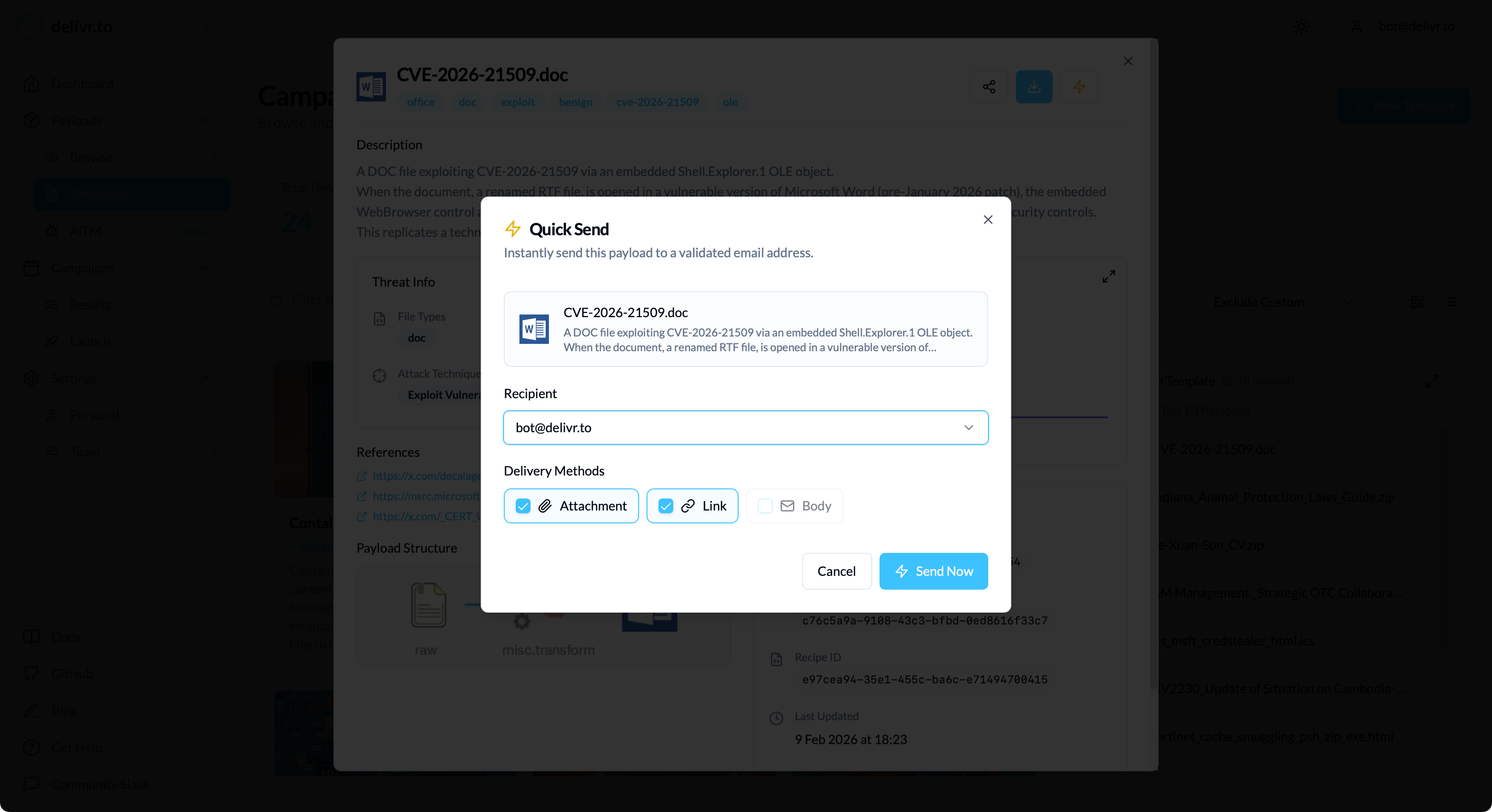
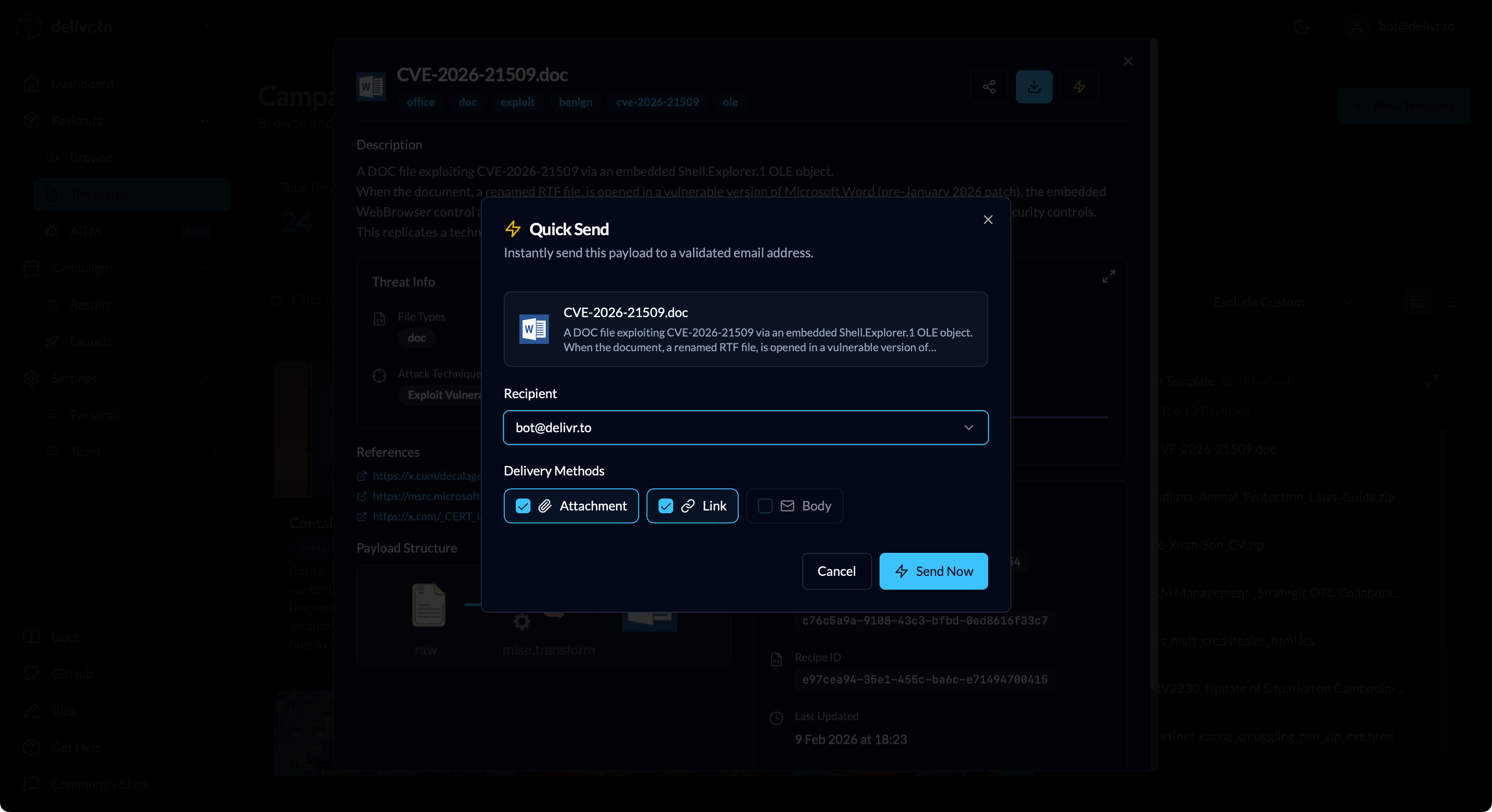
Quick Send is available on any payload detail page across the platform. When you’re logged in, you’ll see a ⚡ icon button next to the download button.
Clicking the ⚡ button opens the Quick Send modal.
Quick Send is only visible to authenticated users. If you don’t see the ⚡ button, make sure you’re logged in.
After Sending
Once the campaign launches successfully:
- A toast notification appears with a link to View Campaign — this takes you straight to the campaign results page
- The campaign is named “Quick Send - {payload name}” so it’s easy to identify in your campaign history
Results (delivered, blocked, etc.) appear in the campaign results view once processing completes.
Enterprise Behaviour
Quick Send works slightly differently for Enterprise customers. Enterprise users each get their own Quick Send template, named “Quick Send Payloads - {your email}”. This template is created automatically the first time you use Quick Send, and subsequent Quick Sends add payloads to it. This allows you to keep track of what you’ve tested in one place, so you can review deliverability and schedule retests easily.